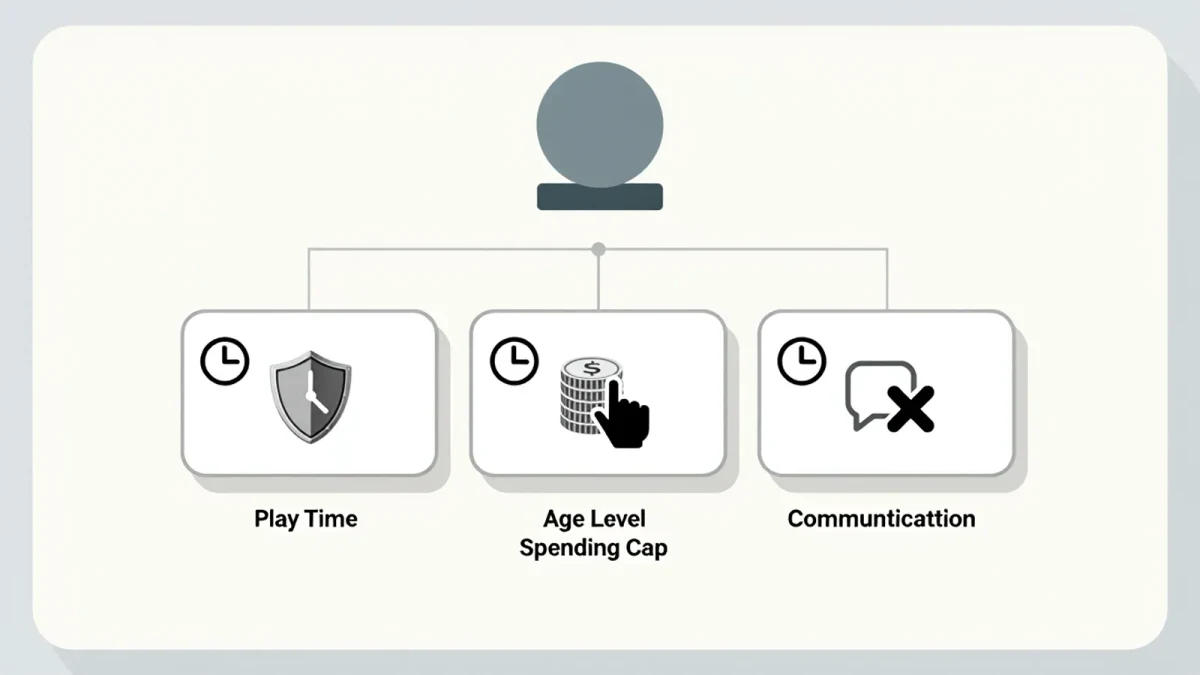
Xbox Family Settings give parents three tools in one free system: a daily screen-time schedule for each child (for example, two hours on school nights and four on Saturdays), content restrictions that automatically block any game or app above the age rating you choose, and weekly activity reports emailed straight to you showing what was played and for how long. Everything is controlled from the Xbox Family Settings app on your phone or from your Microsoft account online, and once a child account is added to your family group, the limits apply across Xbox consoles and Windows gaming — one setup, every device.
How do you add a child to your Xbox family group?
Before any limits exist, your child needs a Microsoft account inside your family group. The quickest path is the Xbox console itself:
- Press the Xbox button and go to Profile & system > Add or switch > Add new.
- Sign in with (or create) the child's Microsoft account. Microsoft asks for a birthdate — enter the real one, because age determines which defaults apply.
- Sign in with your own adult Microsoft account when prompted to confirm you are the organizer. The child is now a member of your family group.
For children under the age of consent in your region (13 in the U.S., per Microsoft's family account structure), the account is a child account by design: an adult organizer must approve friend requests, downloads of mature content, and changes to privacy settings. You can manage up to a full household this way — Microsoft family groups support multiple children, each with different schedules.
How do you set screen time limits?
Open the free Xbox Family Settings app (iOS and Android), select your child, and tap Screen time. Two layers are available:
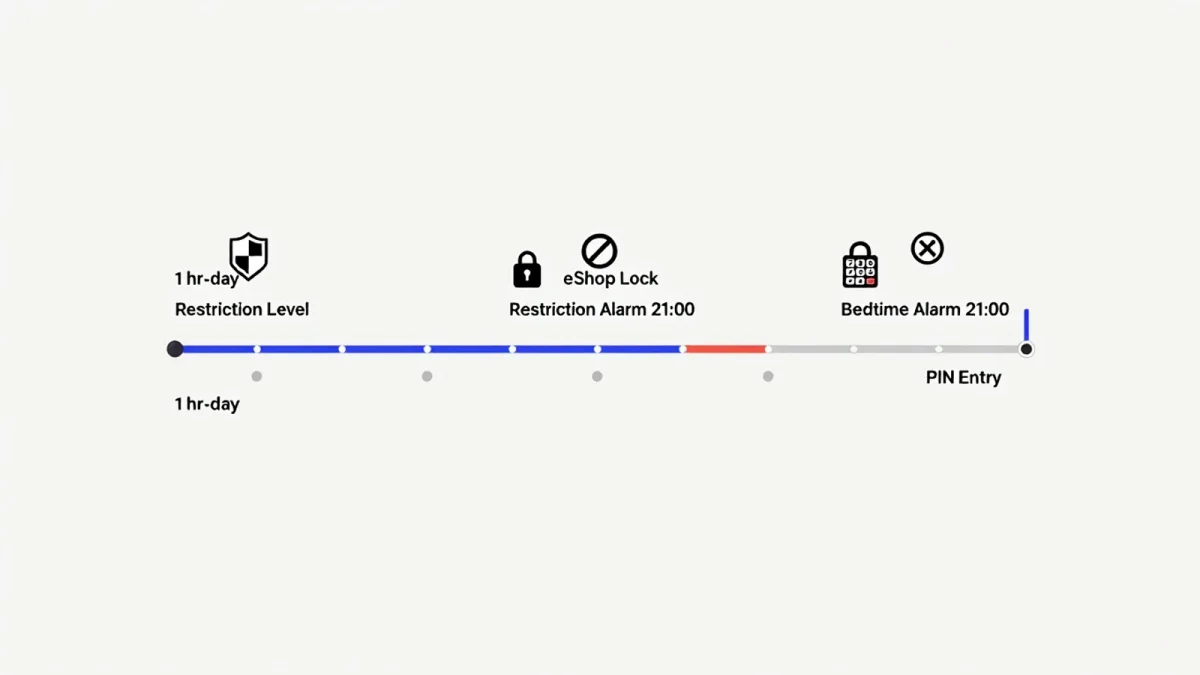
- Xbox screen time — a total daily limit for the console, adjustable per day of the week, in 15-minute increments down to zero. A common family pattern is 1 hour Monday-Thursday, 2 hours Friday, and 3 hours on weekend days.
- A per-app and per-game schedule — you can cap an individual title lower than the overall budget, which is the practical answer for the one game your child would otherwise play exclusively.
When time runs out, the console notifies the player and then signs the child out unless a parent grants more. From the app you can send a one-time bonus of 15 minutes, an hour, or unlimited-for-today — useful for holidays and rainy Saturdays, and far better than negotiating at the TV. Time budgets also carry over visibly on the dashboard, so a child can see the remaining minutes and plan around them, which quietly teaches time budgeting.
How do you restrict games by age rating?
In the app, tap Content restrictions and set Age limit. Xbox then filters games, apps, and media using ratings — ESRB in North America — so anything above the limit simply will not download or launch without organizer approval. Set it to age 10 and an E10+ game plays while a T or M title is blocked; set it to 7 and only early-childhood and E content runs.
Two adjacent toggles matter just as much as the age limit. Ask a parent routes purchase and download requests to your phone for approval instead of blocking outright, and the web filtering option on the console's Microsoft Edge browser keeps younger kids inside a kid-friendly corner of the internet. Per the U.S. Federal Trade Commission's children's privacy guidance, the purchase approval setting is the one worth enabling first: accidental in-game purchases are among the most common family gaming complaints.
What do the activity reports show?
Every week, the family organizer receives an email and app summary listing each child's screen time by day, the games and apps used, and the time spent on each. The same data lives in the app under your child's profile at all times. This is the feature that changes family dynamics: instead of policing, you are reviewing facts together. If the report shows six hours in one game and ten minutes everywhere else, that is a conversation starter, not a punishment — and if screen time spiked on a week you were traveling, you will know why the bedtime routine slipped.
Reports also make limits defensible. Kids argue with rules far less when the number on the page matches the number on the dashboard.
Can kids bypass Xbox Family Settings?
The system is PIN-anchored: changing family settings requires your adult Microsoft account and password, which the child does not have. Signing in as yourself and staying signed in is the classic mistake — always lock your own profile with a PIN so a quick switch to the parent account is not possible. The other weak point is elsewhere in the house: limits apply per account, so a friend's console or a grandparent's unlocked device is outside your reach. That is normal, and worth a family conversation rather than a technical fix.
Is the Xbox Family Settings app worth using if you already set limits on the console?
Yes — remote management is the entire advantage. Console-only settings work, but the app adds the approval queue, bonus time, purchase notifications, and the weekly report, all from your phone. Twenty minutes of setup in March gives you a summer of automatic, consistent limits — and the rare experience of a gaming rule that enforces itself without a parent having to be the villain at 8:55 p.m.