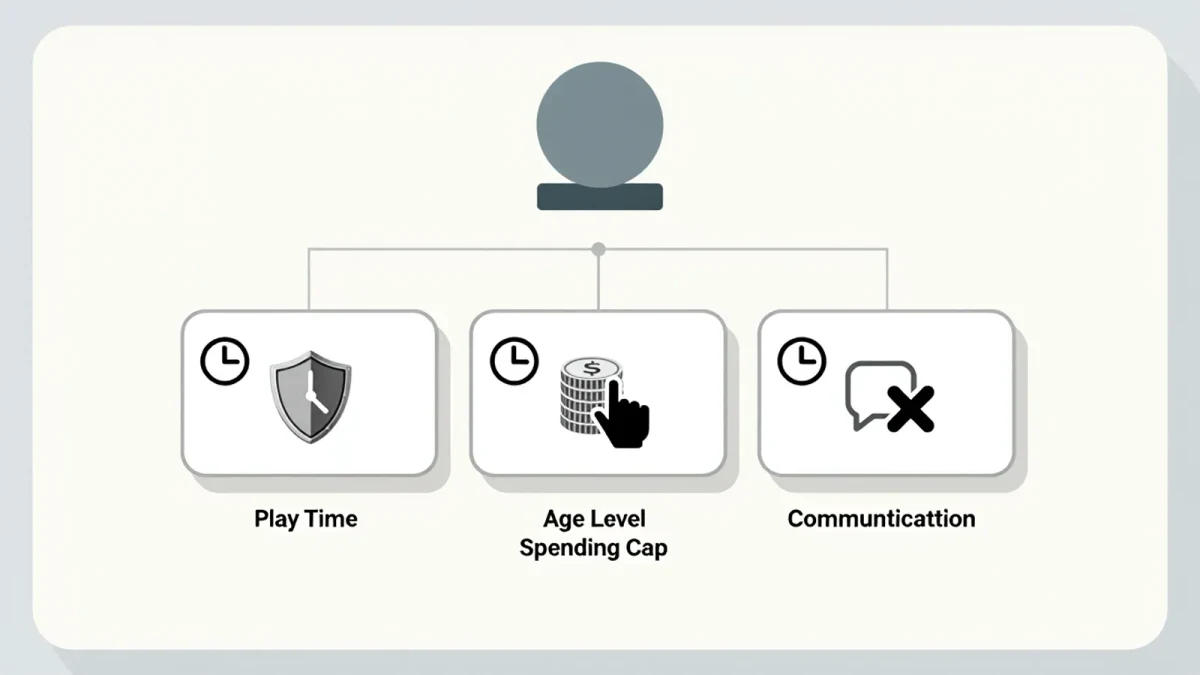
PlayStation 5 parental controls work through a family system: one adult account — the family manager — creates the family, adds child accounts for each kid, and then controls four things per child from Settings or the PlayStation App: daily play-time limits (for example, 90 minutes on school nights), an age level that blocks games and Blu-rays above it (E or E10+ through M), a monthly spending limit on the PlayStation Store, and restrictions on communication and user-generated content. Setup takes about 15 minutes, applies to both PS5 and PS4 consoles the child signs into, and a child cannot change any of it without the family manager's passcode.
Who is the family manager and why does it matter?
The first adult who creates the family on the console is the family manager — typically you. The manager can add other adults (a partner, a grandparent) as guardians who share management rights, and add children who then automatically receive restricted settings by default. This structure matters because it is account-based: limits follow the child account to any PlayStation console, not just the one in your living room. Per Sony's published family management documentation, the manager account holder is also the only one who can change the family's members and reset the parental controls passcode, so keep that account's password to yourself.
One practical step before adding anyone: set a login passcode on your own adult account so a quick profile switch to the unrestricted grown-up profile is impossible for little fingers.
How do you add a child account on PS5?
- Go to Settings > Users and Accounts > Family and Friends (on some system software versions, Family Management sits directly under Settings).
- Select Add Family Member > Create User, and follow the prompts to create the child's account with their real date of birth. The real birthdate is essential — it determines the default age level.
- Confirm with your own account, then open Family Management > select the child > Parental Controls to adjust everything below.
Children under the relevant age of consent are automatically given child accounts; you cannot accidentally give a 7-year-old an unrestricted adult profile.
How do you set a play-time limit on PS5?
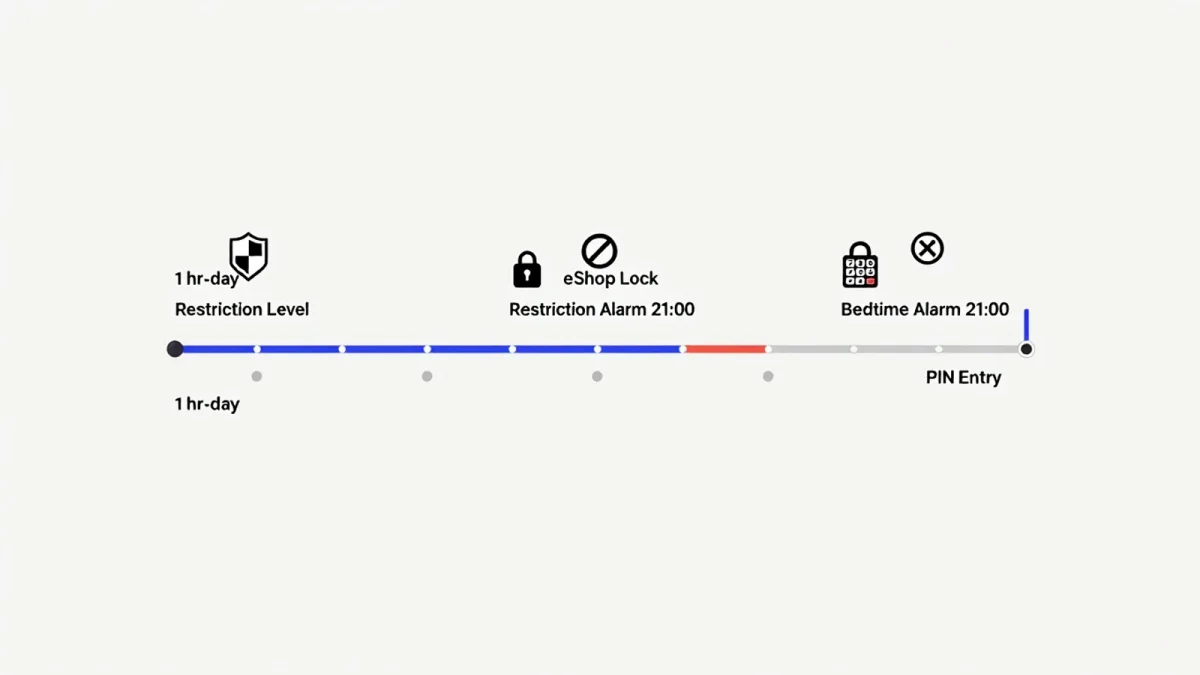
Under the child's Parental Controls, choose Play Time Settings. Here you set, per day of the week, both a duration (from zero up to whatever ceiling you choose) and When Play Time Ends behavior: notify only, or notify and log the child out of the console. The logout option is the one that enforces itself; the notification option relies on honesty at 8:55 p.m. Many families use notify-and-logout on school nights and notify-only on weekends.
Play time counts everything on the console — games, apps, and media — not just a single title. A child can see remaining time from their profile, which, as on other platforms, quietly teaches budgeting: finish the level now or save thirty minutes for tomorrow.
How do you restrict games by age rating?
In the child's Parental Controls, set Games to an age level. The scale runs from the most restrictive early-childhood level upward through E, E10+, Teen, and Mature equivalents, using ESRB ratings in North America. Any disc or download above the chosen level refuses to launch without the family manager's passcode — the restriction applies even to a game a friend brings over on disc, which is a scenario console-level-only systems can miss. Set Blu-ray and DVD separately in the same menu, since movies use a different rating scale than games.
Pair this with the PlayStation Store settings: set a monthly spending limit of zero for young children (making purchases require the manager), and leave the purchase-confirmation emails on so you see anything bought, when, and for how much.
How do you limit chat and user-created content?
Still under the child's Parental Controls, open Communication and User-Generated Content. Restricting it blocks messages, chat, and interaction with content other players create — appropriate default for elementary-age kids. Allowing it opens communication with anyone, not just friends, depending on the sub-settings, so for teens the middle path is usually: allow communication, but review the sub-toggles with your teen rather than defaulting everything open. Per the U.S. Federal Trade Commission's children's online privacy guidance, restrictions work best paired with a conversation about why they exist — teens accept limits they helped shape far better than ones discovered mid-chat.
Can you manage it all from your phone?
Largely, yes. The PlayStation App lets the family manager view and change each child's play-time and spending settings remotely, and see recent activity, without walking to the console. The app cannot do everything the console's Family Management screen can, so do the initial setup on the PS5 itself and use the app for day-to-day adjustments — extending a birthday weekend, cutting a grounding short, or checking how last week's limits actually went.
Fifteen minutes of April setup, one passcode, and the PlayStation enforces the family rules for the rest of the year — consistently, on every console in the house, and without anyone having to be the villain at bedtime.