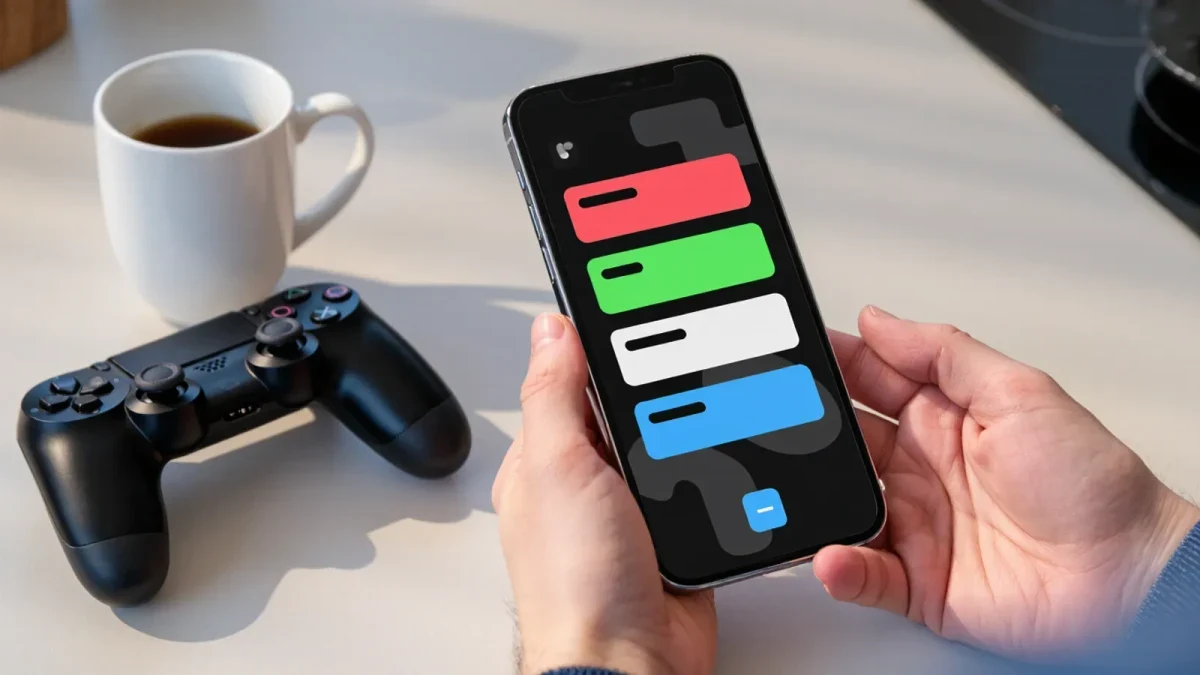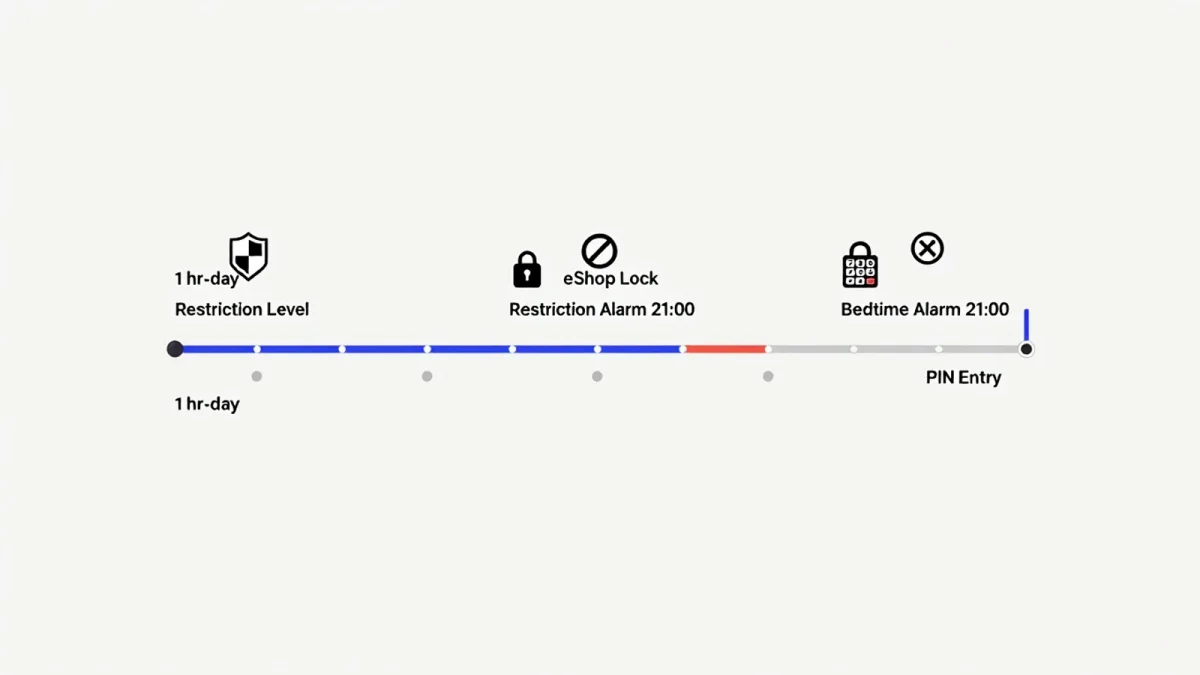
Nintendo Switch parental controls are set up in two places: the free Nintendo Switch Parental Controls smartphone app (which handles play-time limits and summaries) and the console's own System Settings (which restrict games by ESRB rating, online communication, and the Nintendo eShop). The whole process takes about 15 minutes, works on every Switch model including Switch 2, Switch OLED, and the original docked console, and once it is running you can set a daily play-time limit, an alarm for bedtime, and a PIN code your child cannot guess.
What do you need before you start?
You need three things: the family Switch console, your smartphone (iOS or Android), and a Nintendo Account that you — the parent — control. Download the Nintendo Switch Parental Controls app from the App Store or Google Play and sign in with your Nintendo Account. Keep the console nearby, because the app and the system have to be linked with a six-digit registration code during setup.
One important rule: never link the app to the child's own Nintendo Account credentials. The app belongs to the parent, and the limits apply to the whole console rather than to individual accounts — a key difference from Xbox and PlayStation family systems.
How do you link the app to the console?
On the Switch, open System Settings > Parental Controls, and if settings were never configured, select Parental Controls Settings. The console will offer two paths: use your smartphone, or manage settings on the console itself. Choose the smartphone option.
- On the console, select I Have the App Installed. A six-digit registration code appears on the TV or handheld screen.
- Open the Parental Controls app, tap the plus icon, and enter the registration code when prompted.
- The app confirms the console by name. Tap Register, and a six-digit Parental Controls PIN screen appears — set a PIN you will remember but your child will not (skip birthdates and 1234).
Once linked, every setting below can be changed from your phone without touching the console. That matters: you can extend play time from the kitchen while the negotiation is still in progress.
How do you set a daily play-time limit?
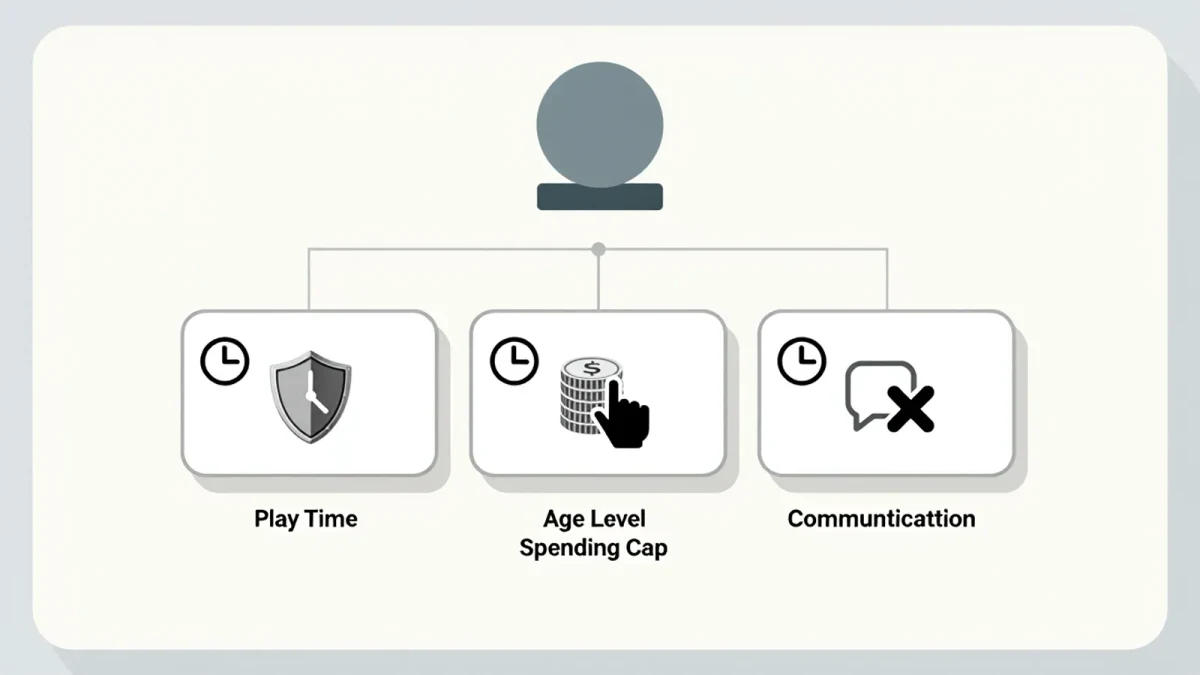
In the app, tap Play-Time Limit. Nintendo offers a simple structure: set a daily ceiling of 15 minutes up to 6 hours, plus a choice of bedtime alarm or suspend software when time runs out. When the limit hits, the console displays a notification and — if you chose suspend — the game pauses until a parent enters the PIN.
Two refinements are worth knowing. You can set different limits for each day of the week, so Friday can run longer than Tuesday. And a feature called Play-Time Overview in Nintendo's parental controls app, updated in late 2024, adds a monthly summary showing how much time was spent playing each day — a useful, low-drama starting point for a family conversation about habits.
How do you restrict games by age rating?
Restriction level works on a simple scale from Teen down through Child and Young Child, and it can be set in the app under Restriction Level. Teen allows software rated up to ESRB T; Pre-teen allows up to E10+; Child allows E; Young Child is the tightest setting. Games above the chosen level will not launch without the PIN.
You can also whitelist by hand. Select Customize and add individual titles to Whitelisted Software — handy when one sibling is ready for a game the other is not. Note one quirk: Nintendo's own restriction scale is a Nintendo system, but it maps directly onto the ESRB ratings printed on every game box, so a Child setting blocks anything above E.
How do you turn off online chat and the eShop?
Under the console's Parental Controls (reachable via the app or System Settings), toggle the communication settings:
- Restrict Online Communication and User-Generated Content — disables voice chat, posting screenshots to social media, and interaction with user-created content in games that support it.
- Nintendo eShop Restrictions — when enabled, purchasing on the console requires your Nintendo Account and password, so a 7-year-old cannot buy a $60 game at 7 a.m.
Per guidance published by the U.S. Federal Trade Commission on children's online privacy, settings like these work best when combined with an honest conversation: kids understand limits they helped negotiate far better than limits they discover. Nintendo's app supports that approach by showing play summaries you can look at together.
What can kids do to get around the controls — and how do you stop it?
Most workarounds fail against three basics. First, the PIN gate: without it, nothing above the restriction level launches and play time cannot be changed on the console. Second, unlinking the app requires console settings that are themselves PIN-protected. Third, factory-resetting the console to clear parental controls erases everything — a dramatic act most kids will not attempt for 30 extra minutes of a game.
The realistic risk is not hacking; it is drift. Check the app's monthly summary occasionally, keep the bedtime alarm on, and revisit limits each school year. Parental controls are a tool for good habits, not a substitute for them.
Is the app the only option?
No. If you would rather not use a smartphone, full parental controls are available directly on the console under System Settings > Parental Controls > Console Settings. You get the same restriction levels, communication limits, and PIN — you simply lose remote play-time management and the monthly summaries, which are the app's main advantages. Either way, fifteen minutes of setup in January buys you a much calmer rest of the year.