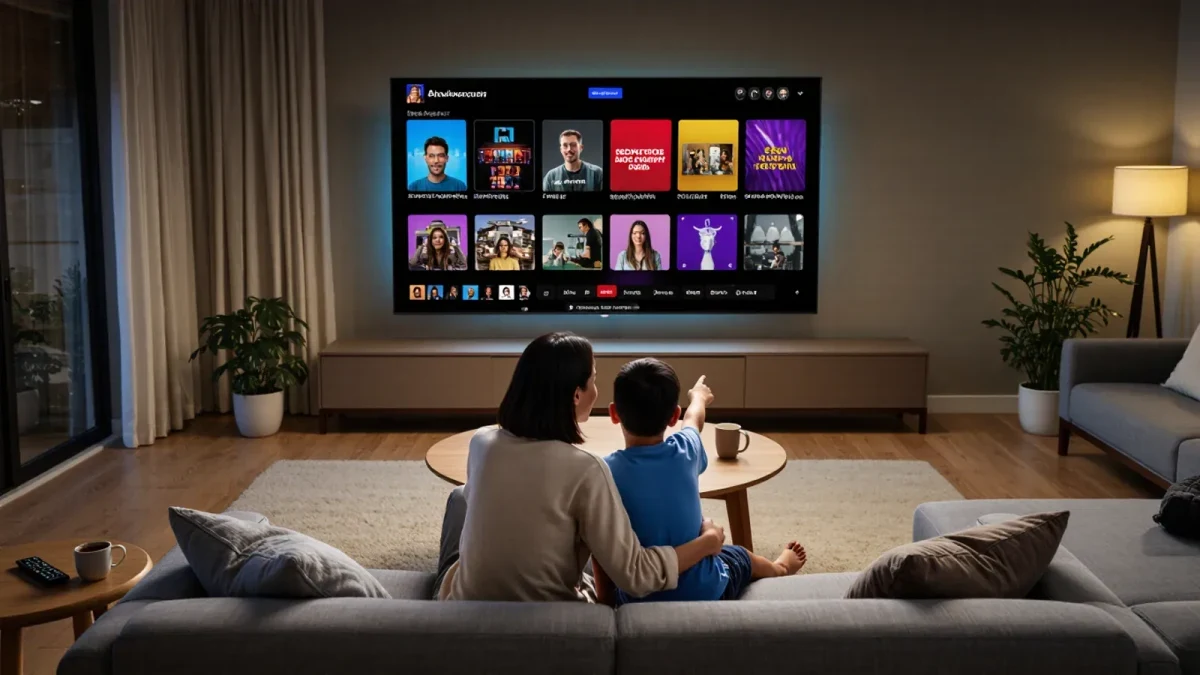
Family-friendly streaming profiles work because every major service — Netflix, Disney+, Max, Amazon Prime Video, Apple TV+, and YouTube — offers the same core machinery: a kids profile, a maturity rating cap, a purchase or watch PIN, and viewing history you can check. The menus move around and the names change, but the principles do not. Set the four things below once, in about fifteen minutes, and the household television stops being a negotiation.
Why not just share one adult profile?
Shared profiles leak in both directions. Kids get rows of titles meant for grown-ups, and your recommendations get flattened by four hundred episodes of a cartoon. Separate profiles also make the controls meaningful: a maturity cap only protects a profile that actually belongs to the child. The U.S. Federal Trade Commission, which enforces children's privacy rules online, recommends that parents know what data is collected from kids and use available parental settings — a kids profile is where those settings live.
What are the four settings that matter?
Whatever service you use, look for the same four controls. Names vary slightly; the functions are identical.
- Kids profile: a mode that restricts the interface to child-appropriate titles and often removes ads and comments where the service supports it.
- Maturity rating cap: a ceiling — TV-Y, TV-G, PG, and so on — above which nothing appears without your PIN.
- Purchase or profile PIN: a four-to-six digit code blocking rentals, upgrades, and profile changes.
- Autoplay toggle: turning it off ends the endless "next episode" loop and gives kids a natural stopping point.
| Setting | What it does | Where it usually lives |
|---|---|---|
| Kids profile | Filters catalog to child-safe titles | Profile picker → add profile → kids mode |
| Rating cap | Hides titles above your chosen rating | Account settings → parental controls |
| PIN | Blocks purchases and setting changes | Account settings → PIN or restrictions |
| Autoplay | Stops auto-playing the next episode | Profile settings → playback |
How do ratings actually map to ages?
The TV parental guidelines are consistent across services: TV-Y means all children, TV-Y7 means ages seven and up, TV-G is general audiences, and TV-PG suggests parental guidance because mild themes may appear. Movie-style ratings follow the familiar ladder of G, PG, PG-13, and R. For preschoolers, cap at TV-Y and G. For elementary ages, TV-Y7 and PG are the usual comfort zone. Check the rating cap every few months — what suited a six-year-old is often too narrow for a nine-year-old.
How do you set up a kids profile step by step?
The flow is nearly identical everywhere. From the profile picker, choose to add a profile and mark it as a kids or child profile. Pick the age band or rating ceiling the service offers. Then go to account settings on the service's website — the web version usually exposes more parental options than the TV app — and set a PIN that only adults know. Finally, sign in on the living-room device, confirm the profile behaves as expected, and turn off autoplay. Repeat per child; most services allow four to six profiles per household.
What about live TV, sports, and YouTube?
Live streams bypass rating filters because nobody assigns ratings in real time, so a kids profile will not sanitize a live channel — treat live TV as an adult-supervised zone. On YouTube, use the dedicated kids experience for younger children and the "supervised" mode for tweens, both reachable from family settings. Comments and autoplay are the two features worth switching off first wherever the option exists.
Should you tell kids the PIN?
No — and yes, in one narrow case. Keep the purchase and settings PIN private, because a shared PIN defeats every other control. But explain what the PIN does, so restrictions feel like rules rather than malfunctions. When a child asks for a title above their cap, watching it together on an adult profile — with you present — is the honest workaround. Co-viewing is also the approach the American Academy of Pediatrics recommends for young children's media use generally.
How often should you review the settings?
Put a twice-yearly reminder on the calendar: check the rating cap, scan viewing history on each kids profile, and update age bands as birthdays pass. Services redesign their settings pages regularly, so expect the menus to have moved. A ten-minute review keeps the safeguards matched to the kid they were built for, and the viewing-history scan often tells you what your child is actually into — useful gift intelligence for grandparents.
What does the kids profile leave out?
A kids profile filters the catalog, not the conversation around it. Ads, suggested clips, search results, and anything a service streams live can still drift past the cap, which is why profiles are the first layer rather than the whole plan. The second layer is location: a shared TV in a common room keeps you casually aware of what is playing, and a quick glance at the continue-watching row tells you more than any report. The third layer is talking — asking what your child watched and liked turns the settings into a starting point rather than a wall.
The short version
One kids profile per child, a rating cap matched to their age, a PIN only adults know, and autoplay off. Fifteen minutes of setup buys years of not scrolling past things you would rather not explain yet — and keeps everyone's recommendations, including yours, intact.